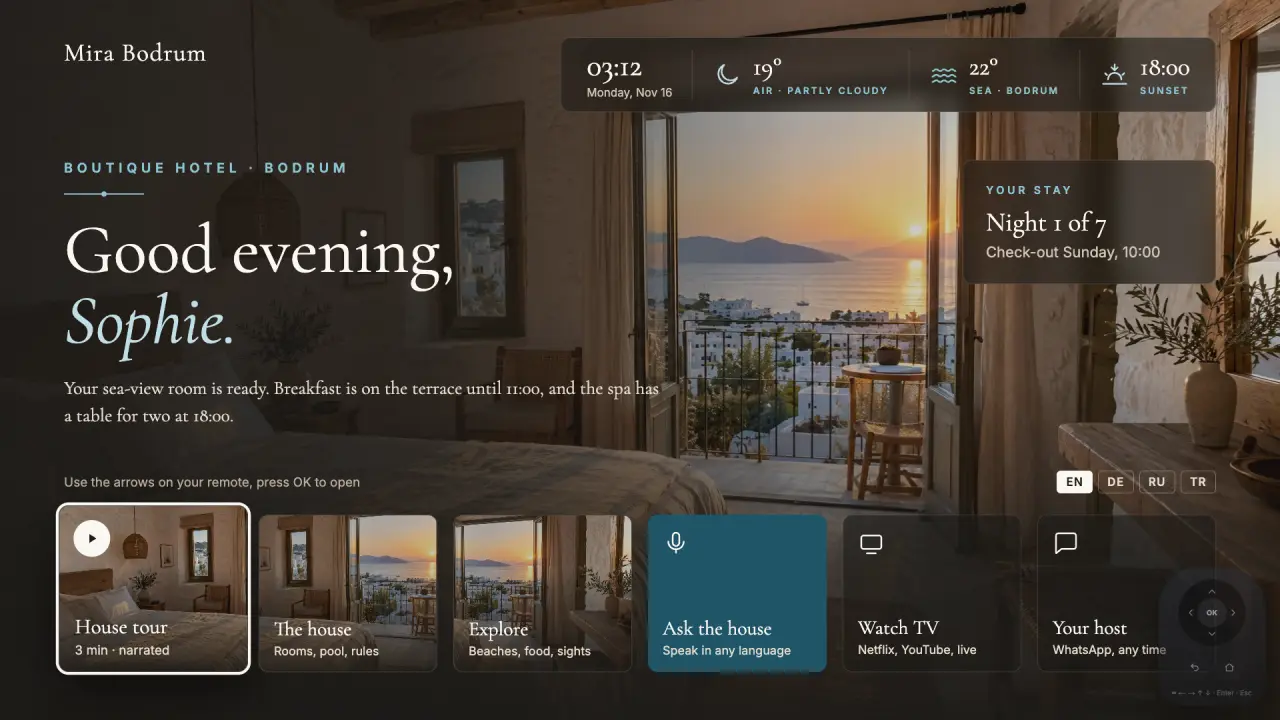
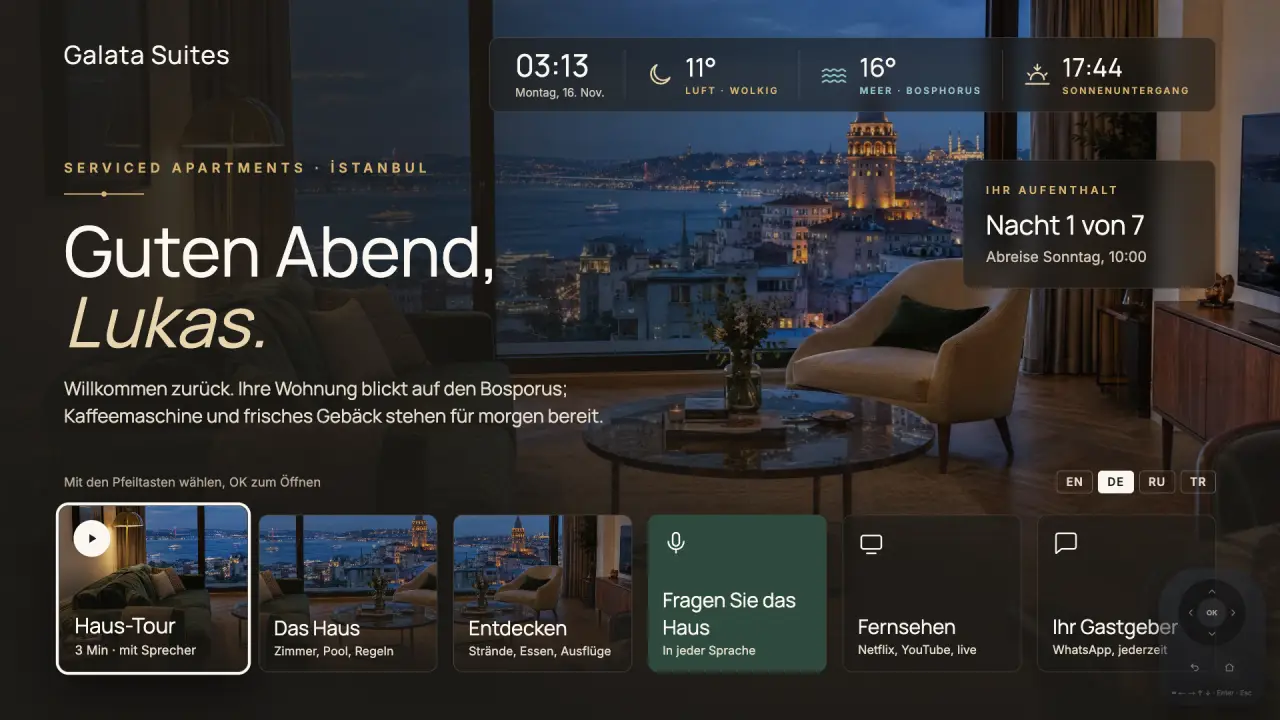
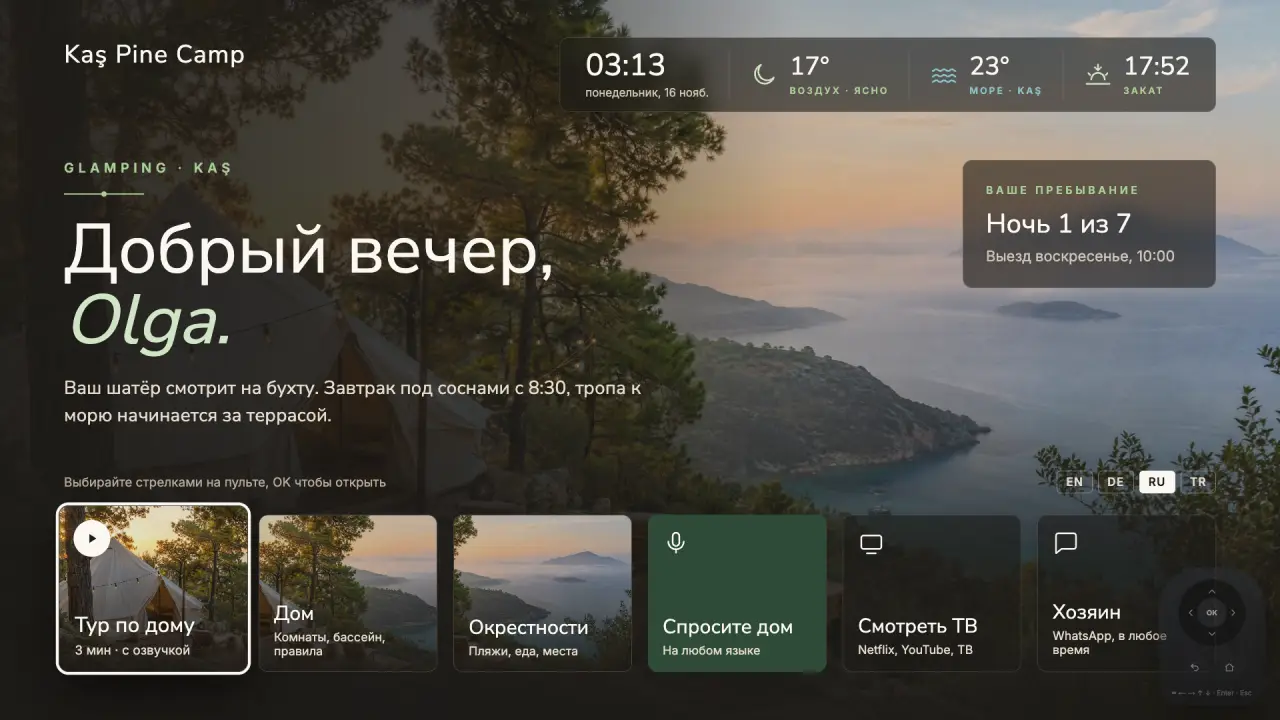
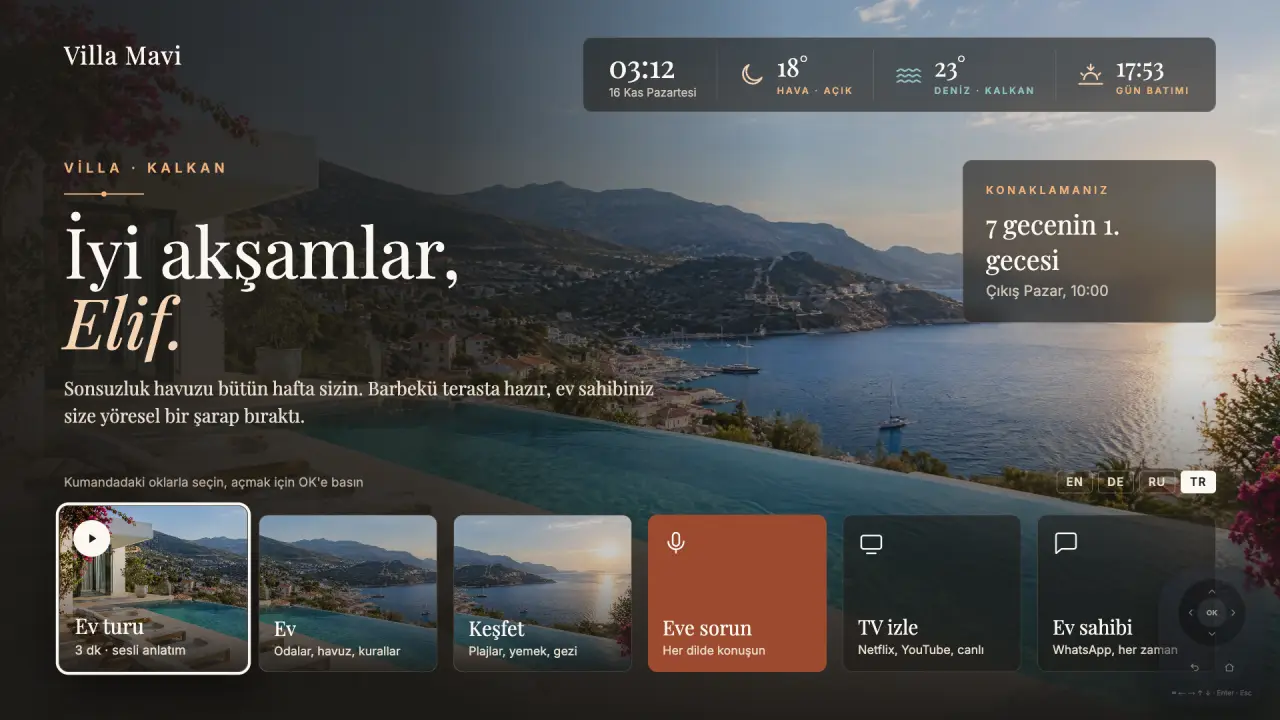
First: which TV do you have?
Type the brand and model on the compatibility page (/en/compatibility). The result shows one of three routes: no device needed (Google TV and Android TV), Google TV stick recommended (LG webOS and Samsung Tizen) or Google TV stick required (other and older TVs).
On LG and Samsung our own Welcomo app can run after store approval, but it will not open by itself at power-on; the guest has to open it with the remote. If you want Welcomo to be the first screen when the TV turns on, we recommend a stick on these TVs too.
Which Google TV stick should I buy?
Any current device that runs Google TV or Android TV and plugs into HDMI will do. Prices are roughly 20 to 100 USD depending on the country; buy one locally. Welcomo does not sell these devices and has no affiliation with any shop.
| Example device | Note |
|---|---|
| Google TV Streamer | Google's current device, box format |
| Chromecast with Google TV | Widely available, small, comes with a remote |
| Xiaomi TV Stick 4K | Easy to find in Turkey and Europe |
| Xiaomi TV Box S | Box format, Google TV |
| Walmart Onn 4K | Common and low-priced in the US |
Examples for information only; no sales or affiliate links. Before buying, check that the device runs Google TV or Android TV.
Step-by-step setup
- Plug the stick into one of the TV's HDMI inputs and connect its power cable.
- Finish the stick's own setup: language, Wi-Fi and a Google account (needed for Google Play).
- Turn on HDMI-CEC on the TV. The name depends on the brand: SIMPLINK on LG, Anynet+ on Samsung, BRAVIA Sync on Sony, EasyLink on Philips, CEC on Vestel and Grundig.
- Set the TV to open on the last used input (or choose the stick's HDMI input as the power-on input), so the stick's screen comes up every time the TV turns on.
- Install Welcomo from Google Play. Coming soon on Google Play; until then, write to us for setup.
- Open Welcomo and, when asked, allow "display over other apps". This lets Welcomo come up as the first screen when the TV turns on.
- Enter the pairing code shown on screen in the panel, under the property's Devices section. Within seconds the screen switches to that property's welcome.
- Test by switching the TV off and on: the first screen should be Welcomo.
Why do HDMI-CEC and last input matter?
HDMI-CEC lets the TV and the HDMI device switch each other on and off, so the stick wakes up when the guest turns on the TV with its own remote. The last-input setting makes the TV open on the stick's input instead of live TV. Together they put Welcomo in front of the guest first.
On many TVs these settings sit under General, Connections or External devices. Menu names change by model and year; check your TV's manual.
Troubleshooting
- The TV opens on live TV: check the last-input or power-on input setting and make sure HDMI-CEC is on.
- The stick does not wake with the TV: power the stick from its own adapter instead of the TV's USB port, then switch CEC off and on again.
- Welcomo does not come up: check the "display over other apps" permission under Settings, Apps.
- The pairing code is rejected: codes are short-lived; get a new one in Welcomo and make sure you picked the right property in the panel.
- The picture stutters: keep the stick close to the Wi-Fi router, or use a wired connection if the device supports it.
On-site setup
In and around Fethiye we set it up on site; write to us. Elsewhere in Turkey and abroad you set it up with this guide, and we help by email and WhatsApp wherever you get stuck.
Frequently asked
Does Welcomo sell a TV device?
No. For TVs that are not Google TV or Android TV you buy a Google TV stick locally. There is no device fee in the subscription.
Do I need a stick on an LG or Samsung TV?
Not strictly, but we recommend it. Our own app can run on these TVs after store approval, but it will not open by itself at power-on; the guest has to open it with the remote.
What about Netflix and YouTube?
On a Google TV stick, Netflix and YouTube stay as they are. They open in one step from the Welcomo screen.
Do I need a Google account?
Installing apps from Google Play needs a Google account on the stick. We suggest a separate account that belongs to the business.
Sources
- Google TV Help: set up Google TV · retrieved November 16, 2026